
Installing Mega888 on Vivo and iQOO Phones
The three moves that get it installed:
- Settings → More settings → Permission management → Install unknown apps, then allow File Manager.
- Open the iManager app and turn off its install scan. This switch is not in Settings, which is why searching Settings will never find it.
- Tap the APK again. It installs.
If you have already granted the permission and it still will not install, step two is what you are missing. Everything that is not Vivo-specific — the file, checking it is the original, updating it later — sits on the Mega888 APK download guide.
Download Mega888 APKAuto Blocker still blocking? Get help on — WhatsApp Telegram
What Is Different on Vivo
Funtouch OS asks for the same permission every Android phone asks for. Then a second app on the phone blocks the install anyway.
That second app is iManager, Vivo's built-in security tool, and it runs its own check with its own switch. Granting the Settings permission does not touch it, and turning off one while the other is on gets you nowhere.
This is what makes Vivo different from the other brands rather than a variation on them. On Samsung there is one switch and it is hidden. On Xiaomi there are several, but they arrive one after another in the same flow. On Vivo the second switch lives in a completely separate app, so a reader can search every menu in Settings, find nothing, and reasonably conclude the file is broken. It is not.
iQOO phones run Funtouch OS as well, so everything below applies to them unchanged.
Allowing "Install Unknown Apps" on Funtouch OS
Settings → More settings → Permission management → Install unknown apps.
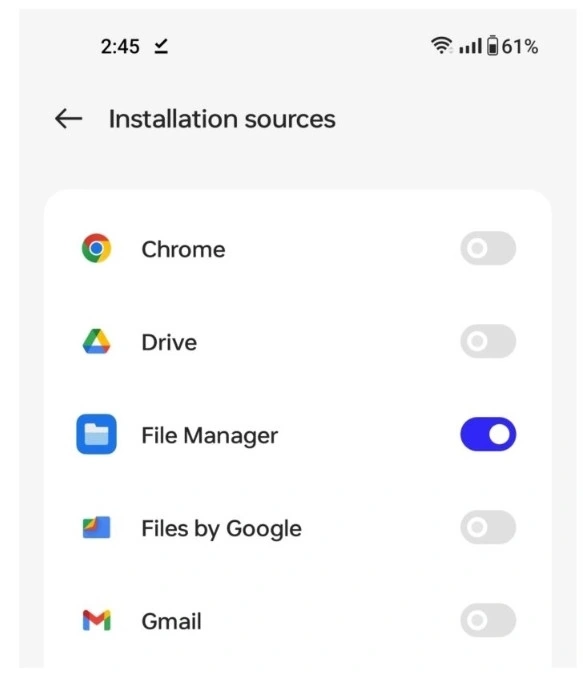
Allow File Manager if you are opening the APK from Downloads, or your browser if you are tapping it from the download notification.
Funtouch has moved this menu between versions. If the path above does not match your phone, open Settings and search for "unknown" — the search bar will find it wherever Vivo has put it on your build.
The Second Switch: iManager
iManager is a separate app, not a Settings page. Find it in your app drawer, open it, and go into its own settings — usually through a gear icon in the corner.
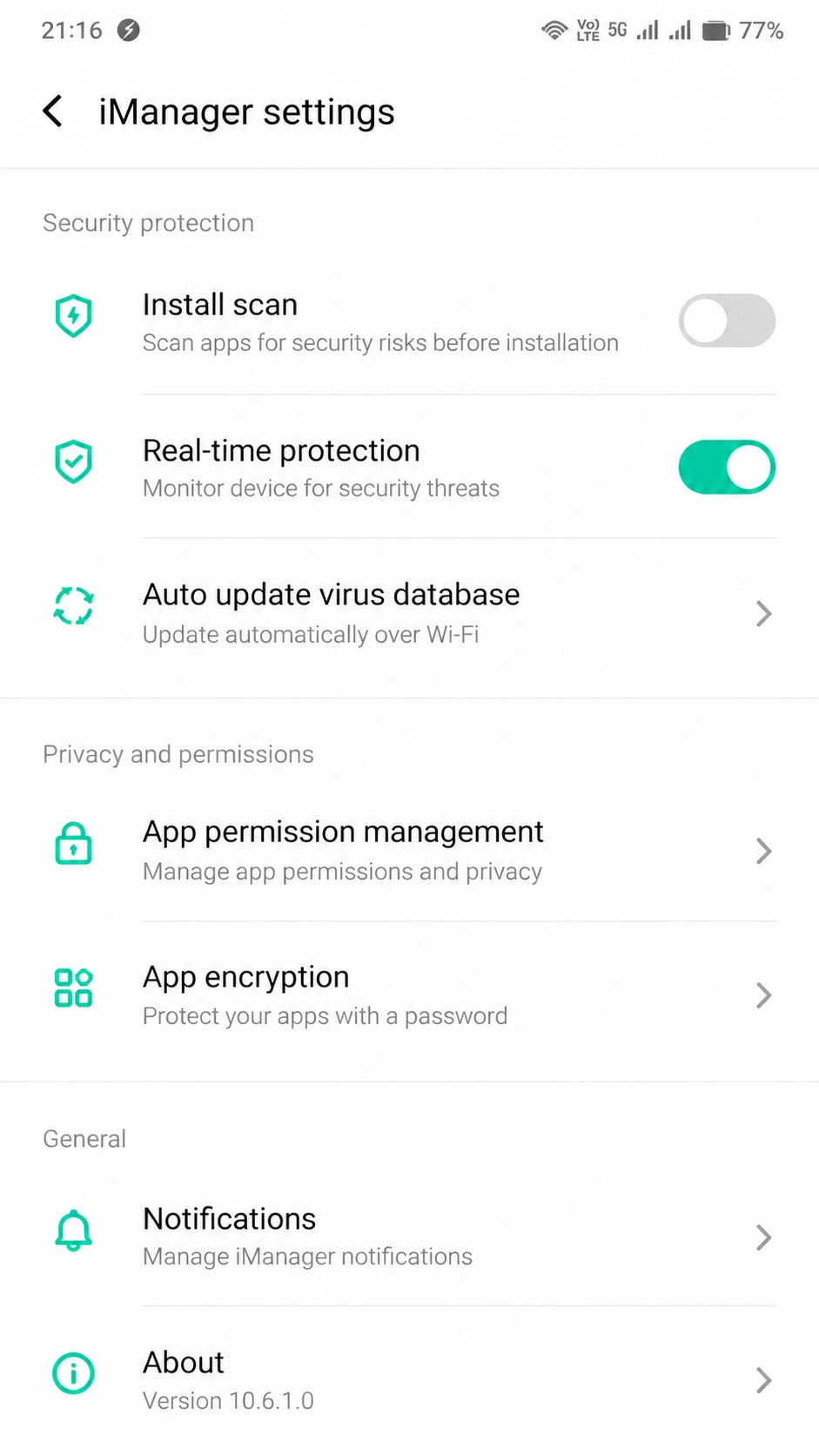
Turn off the option that scans apps before installing. The wording varies by version — it may say install check, security scan, or something close — but there is only one switch of that kind, so it is hard to pick the wrong one.
Then tap the APK again. With both switches cleared it installs without further argument.
You can turn the iManager scan back on afterwards. It does not affect an app that is already installed, and leaving it off permanently is not necessary.
Where Vivo Saves Downloaded APK Files
File Manager → Downloads.
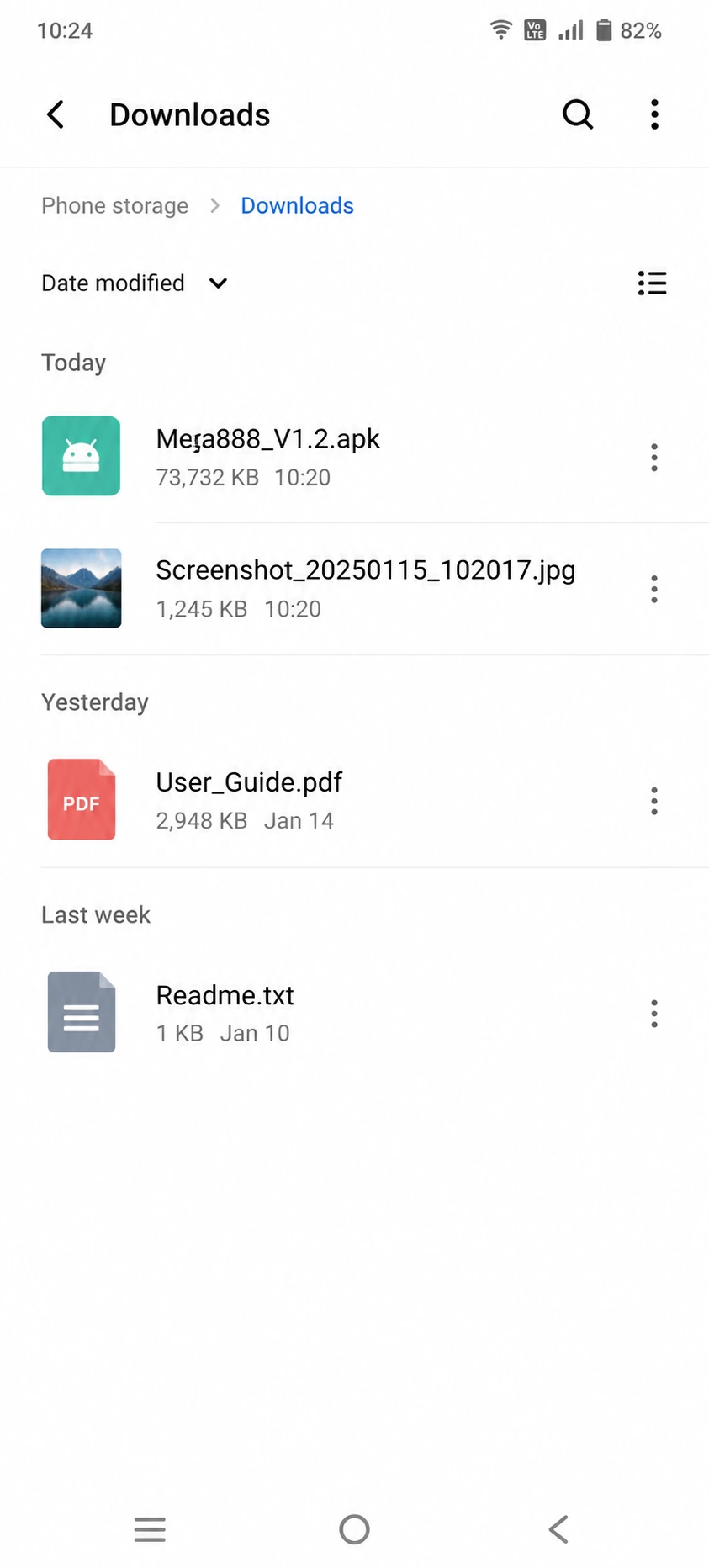
Vivo's File Manager sits in the Tools folder. Every browser on the phone writes to the same Downloads folder, so it does not matter which one you downloaded with.
Common Vivo Problems
The permission is on but it still will not install
iManager. Its scan is a separate switch in a separate app, and the Settings permission has no effect on it.
I cannot find Install unknown apps in Settings
Funtouch has moved it more than once. Search "unknown" in the Settings search bar rather than browsing the menus.
iManager has no settings gear
Some builds put the scan under a Security or Privacy heading inside iManager instead. Look for anything mentioning scanning or checking apps before install.
Back to the Mega888 Android APK Guide
File size, version, confirming your download is the original and updating it later all sit on the Mega888 APK download guide.
If you have not downloaded the file yet, start there.
18+ only. We are a Mega888 agent; the app and its games belong to the provider.